
Onboarding Hospital Users
Onboarding Hospital Users
Setting Up and Managing Hospital User Access to OPERAi
This guide provides detailed information for NHS Wales hospital and Health Board staff who require access to the OPERAi Electronic Referral System. It explains how new users are onboarded, how access requests are submitted, the responsibilities of Hospital Administrators, and the processes for maintaining and reviewing user access.
The guide is intended for Hospital Administrators, clinical staff responsible for reviewing and triaging referrals, authorised non-clinical users, and Health Board teams supporting implementation.
Hospital users cannot independently create their own OPERAi accounts. All hospital user accounts are created and maintained through the OPERAi Support Team.
Each hospital must nominate a minimum of two Hospital System Administrators who are responsible for coordinating and maintaining access requests.
New user requests and changes to existing access should be submitted using the Hospital Access Form.
1. Understanding Hospital Access to OPERAi
OPERAi supports the electronic management of eyecare referrals between Primary Care Optical Practices and Secondary Care (hospital) ophthalmology services across NHS Wales.
When an optometrist identifies a patient who requires further assessment or treatment within a hospital setting, a referral can be submitted electronically through OPERAi.
The referral is then made available to authorised hospital staff for review and clinical triage.
Hospital users may will be able to:
- View referrals submitted to their hospital or service.
- Review patient and clinical referral information.
- Undertake clinical triage where authorised.
- Manage referrals within the relevant clinical pathways.
- Access information relevant to their assigned responsibilities.
How Are Hospitals Added to OPERAi?
Hospitals are manually added to OPERAi by the dedicated OPERAi Support Team as part of the wider implementation programme.
This process is coordinated with NHS Wales Health Boards to ensure that relevant hospitals and services are configured to receive electronic referrals.
As part of this engagement process, the Hospital Access Form is provided to support the onboarding of authorised staff.
The creation of a hospital within OPERAi is managed centrally. Individual hospital staff should not attempt to register a new hospital or create their own user accounts.
2. Hospital Access Form
The Hospital Access Form is used to request access to the OPERAi system for hospital staff. This includes clinical and non-clinical users who require access to undertake their responsibilities within the application.
Hospital administrators should complete the form with the relevant staff details and submit it to the OPERAi Support Team for processing.
The form also supports the ongoing management of user access, including requests to add, remove or amend existing accounts.
Download the Hospital Access Form
Download the editable Microsoft Word document, complete the required staff information and return the completed form to the OPERAi Support Team.
↓ Download Hospital Access Form (Word)File format: Microsoft Word (.docx)
Completing the Hospital Access Form
Before completing the form, the Hospital Administrator should confirm which members of staff require access and ensure that the request is appropriate for their role.
- Download the form: Select the Download Hospital Access Form button above.
- Open the document: Open the downloaded file in Microsoft Word.
- Enter staff details: Complete the relevant sections for each member of staff requesting access.
- Check professional information: Ensure that any required professional registration numbers are recorded accurately, where applicable.
- Verify email addresses: Check that each user's email address is correct, as this will be used for account communications.
- Review the completed form: Ensure that all required information has been provided.
- Save the document: Save the completed form using your organisation's approved procedures.
- Submit the form: Email the completed document to the OPERAi Support Team.
Submitting Your Completed Form
Once completed, please email the form to:
OperaiWales@referral.solutions
Requests to add, remove or amend existing users should be submitted by an authorised Hospital Administrator.
Incorrect or incomplete information may delay the processing of an access request.
Before submitting the form, ensure that staff details, email addresses and any relevant professional registration information have been checked.
3. Responsibilities of Hospital Administrators
Each hospital must nominate a minimum of two Hospital Administrators who are responsible for coordinating and maintaining access to OPERAi.
These administrators act as the nominated contacts between their organisation and the OPERAi Support Team for user access management.
Key Responsibilities
- Identifying Users: Confirming which clinical and non-clinical staff require access to OPERAi.
- Maintaining User Information: Keeping the Hospital Access Form updated with the details of authorised users.
- Requesting New Accounts: Submitting access requests for new staff members.
- Removing Access: Requesting account removal when staff no longer require access.
- Reviewing Access Changes: Ensuring that access remains appropriate when staff change roles or responsibilities.
- Managing Locum Access: Coordinating access requests for temporary clinical staff.
- Annual Access Audits: Reviewing the hospital's user list at least annually.
Hospital Administrators do not directly create or delete user accounts within OPERAi.
Instead, they submit the relevant requests to the OPERAi Support Team for processing.
Hospital System Administrators coordinate and authorise access requests for their organisation.
The OPERAi Support Team processes the requested account changes within the application.
4. Requesting Access for a New Hospital User
When a new member of staff requires access to OPERAi, the request should be coordinated through the hospital's nominated Administrator.
Step 1: Confirm the Requirement for Access
The Administrator should confirm that the staff member requires OPERAi access as part of their role and responsibilities.
Step 2: Complete the Hospital Access Form
Download the Hospital Access Form from Section 2 and complete the required information.
Ensure that the details are accurate and that the appropriate access requirements have been identified.
Step 3: Submit the Request
Email the completed form to:
OperaiWales@referral.solutions
The email should clearly indicate that the form contains a request to add a new user.
Step 4: Support Team Processes the Request
The OPERAi Support Team will process the request using the information supplied by the Hospital Administrator.
Where clarification is required, the Support Team may contact the administrator before completing the account setup.
Step 5: User Receives Initial Login Information
Once the account has been created, the user will receive their initial password at the email address provided.
The user may be required to change their password when they first access OPERAi.
5. First-Time Login to OPERAi
Once a hospital user account has been created, the user can access OPERAi using their registered login information.
The OPERAi login screen is shown below.
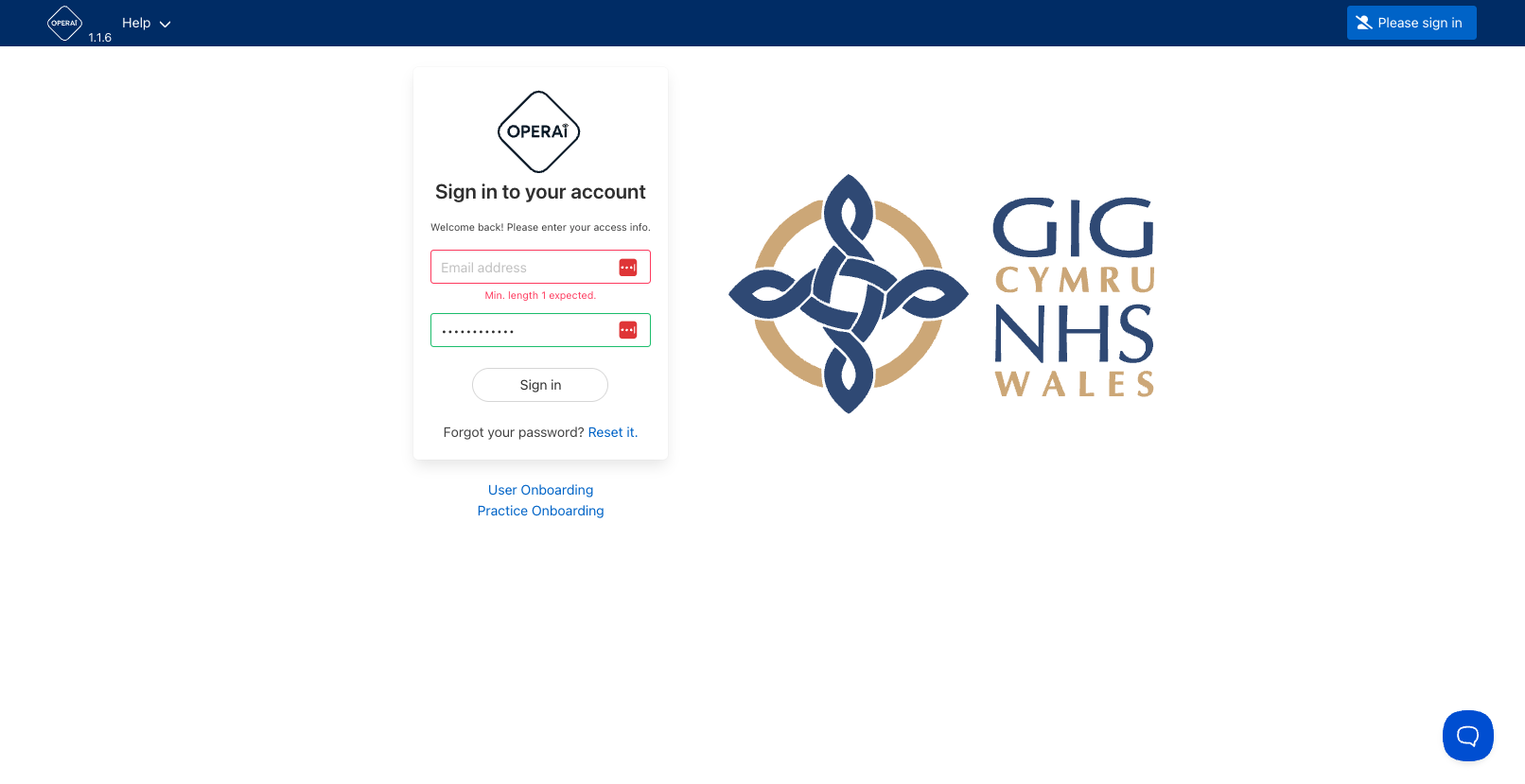
Figure 1: OPERAi Login Screen (click to enlarge)
How to Log In for the First Time
- Open the OPERAi application: https://app.optical-referrals.org/.
- Enter your registered email address in the relevant field.
- Enter the initial password provided following account creation.
- Select the login option to continue.
- When prompted, create a new password that meets the required security standards.
- Complete the password change process.
- Once successfully authenticated, you will be able to access the application.
Password Requirements
All hospital user passwords must meet the following minimum requirements:
- At least 12 characters.
- Must include letters.
- Must include numbers.
- Must include at least one special character.
Users should ensure that their password is not shared with other staff members and is managed in accordance with their organisation's security policies.
6. Forgotten Passwords and Password Reset
If a hospital user forgets their password, they can use the password reset function available on the OPERAi login page.
Users do not need to request a new account if they have forgotten their password.
The password reset screen is shown below.
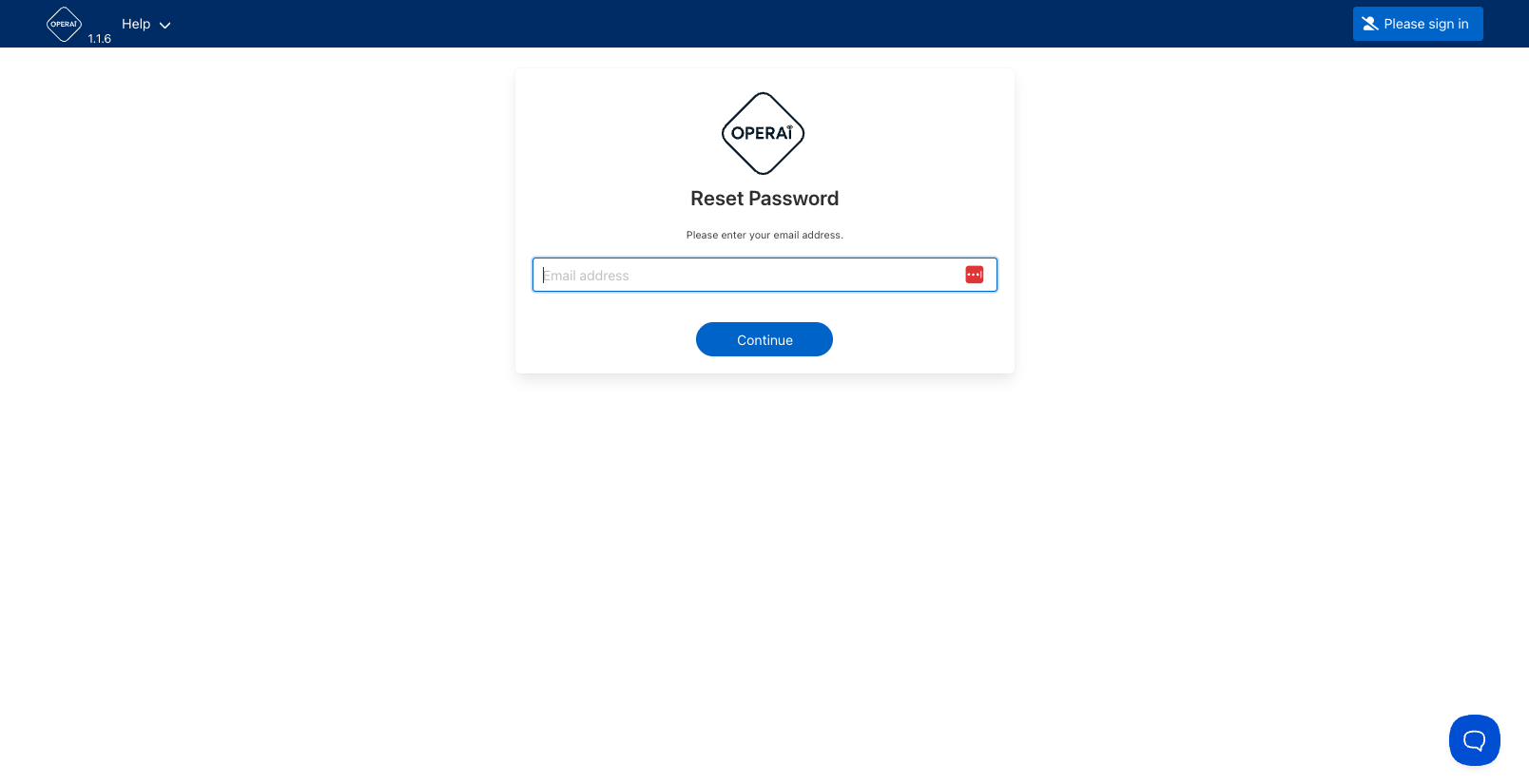
Figure 2: OPERAi Password Reset Screen (click to enlarge)
How to Reset Your Password
- Navigate to the OPERAi login page.
- Select the Reset Password option.
- Follow the instructions displayed on screen.
- A one-time PIN will be sent to your registered email address.
- Enter the PIN when prompted.
- Create a new password that meets the OPERAi password requirements.
- Complete the reset process and log in using your updated password.
The one-time PIN is sent to the email address registered against your account.
Ensure you have access to this mailbox when resetting your password.
Never share your password or one-time PIN with another person.
7. Adding or Changing a Hospital Administrator
Each hospital must maintain at least two nominated Administrators.
Where an administrator leaves, changes role or needs to be replaced, the hospital should request an update.
Requesting an Administrator Change
- Identify the administrator who needs to be added or changed.
- Ensure the request is authorised by an existing Administrator.
- Email the OPERAi Support Team with the requested change.
- Provide any additional information requested by the Support Team.
Requests to add or amend a Hospital Administrator must be made by an existing authorised Hospital Administrator.
8. Onboarding Locum Clinical Staff
Locum clinical staff can be granted access to OPERAi where required for their clinical responsibilities.
Access must be requested through the Hospital Administrator using the Hospital Access Form.
How to Request Locum Access
- Identify the locum requiring access.
- Confirm the nature of the access required.
- Complete the relevant details on the Hospital Access Form.
- Submit the completed form to the OPERAi Support Team.
- Allow sufficient time for the request to be processed.
A minimum of 24 hours' notice should be provided when requesting access for locum clinical staff.
Where possible, submit requests in advance of the locum's planned start date.
When locum access is no longer required, the Hospital Administrator should request the appropriate account change.
9. Locked Accounts
OPERAi includes security controls to manage user accounts.
Hospital user accounts are locked following too many attempts at log in.
If an account has been locked, the user should contact the OPERAi Support Team to request restoration.
How to Restore a Locked Account
- Identify that your account has been locked.
- Contact the OPERAi Support Team.
- Explain that your account requires restoration.
- Follow any instructions provided by the Support Team.
An account locked due to too many tries is different from a forgotten password.
For forgotten passwords, use the reset function.
For accounts locked due to too many tries, contact the OPERAi Support Team.
10. Account Security and Suspected Misuse
All users are responsible for maintaining the security of their OPERAi accounts.
If a user suspects that their account has been misused or accessed inappropriately, they should take prompt action.
What Should You Do?
- Reset your OPERAi password.
- Report the suspected misuse to your Hospital Administrator.
- Provide relevant information about the concern.
- Follow the organisation's established security procedures.
Depending on the circumstances, further investigation may be required.
Never share your login credentials with other staff.
If you suspect that your account has been compromised, reset your password and report the matter promptly.
11. Annual User Access Audit
Hospital Administrators should undertake an annual review of user access.
The purpose of this review is to ensure that only staff who continue to require OPERAi access retain active accounts.
What Should Be Reviewed?
- Whether each user still works within the organisation.
- Whether each user continues to require OPERAi access.
- Whether temporary or locum access is still required.
- Whether any accounts should be removed.
- Whether the nominated Administrators remain correct.
Completing the Audit
- Obtain the current Hospital Access Form or user information.
- Review the listed users against current staffing arrangements.
- Identify any required amendments or removals.
- Update the Hospital Access Form.
- Submit the required changes to the OPERAi Support Team.
Although a formal audit should be completed annually, access should also be reviewed whenever staff leave, change roles or no longer require the system.
12. What If Your Hospital Has Not Received an Access Form?
If your hospital has not received a Hospital Access Form, but is expected to receive referrals through OPERAi, contact the OPERAi Support Team.
Explain that your organisation requires the Hospital Access Form and request guidance on the next steps.
Email: OperaiWales@referral.solutions
13. Common Questions and Troubleshooting
Can I create my own OPERAi account?
No. Hospital user accounts are created through the OPERAi Support Team following an authorised request.
Who should request my access?
Your Hospital Administrator should coordinate and submit your access request.
What if I forget my password?
Use the password reset function on the login page. A one-time PIN will be sent to your registered email address.
What if my account is locked?
Contact the OPERAi Support Team for assistance.
Can locum staff access OPERAi?
Yes. Locum clinical staff can be added through the normal access request process. A minimum of 24 hours' notice should be provided.
What if I leave the hospital?
Your Hospital Administrator should request removal of your access when it is no longer required.
Who do I contact for support?
Contact the OPERAi Support Team: OperaiWales@referral.solutions
14. Hospital Administrator Checklist
Use the following checklist when onboarding new hospital users or reviewing existing access.
☐ Hospital Access Form downloaded.
☐ Minimum of two Administrators nominated.
☐ New user's requirement for access confirmed.
☐ Correct staff details recorded on the form.
☐ Completed form submitted to OPERAi Support.
☐ User advised to expect initial login information.
☐ User aware of password requirements.
☐ User aware of the password reset process.
☐ Temporary or locum access reviewed where applicable.
☐ Accounts removed when no longer required.
☐ Annual user access audit completed.
15. Summary
Hospital user onboarding is managed through a controlled process involving the hospital's nominated Administrators and the OPERAi Support Team.
Each hospital must maintain a minimum of two Administrators who are responsible for coordinating and maintaining user access.
All new user requests, access changes and removals should be submitted through the Hospital Access Form.
Hospital users receive their initial login information by email and must update their password when first accessing OPERAi.
Administrators should ensure that access is reviewed when responsibilities change and that an annual audit is undertaken.
Hospital access to OPERAi is managed centrally through the OPERAi Support Team.
Hospital Administrators are responsible for maintaining accurate user information and requesting appropriate access changes.
Keeping access information up to date helps ensure that OPERAi remains available to authorised staff who require the system for their role.
Need Further Assistance?
If you require assistance with hospital onboarding, user access or account management, please contact the OPERAi Support Team.
OPERAi Electronic Eyecare Referral System
Hospital User Onboarding and Access Management Guide