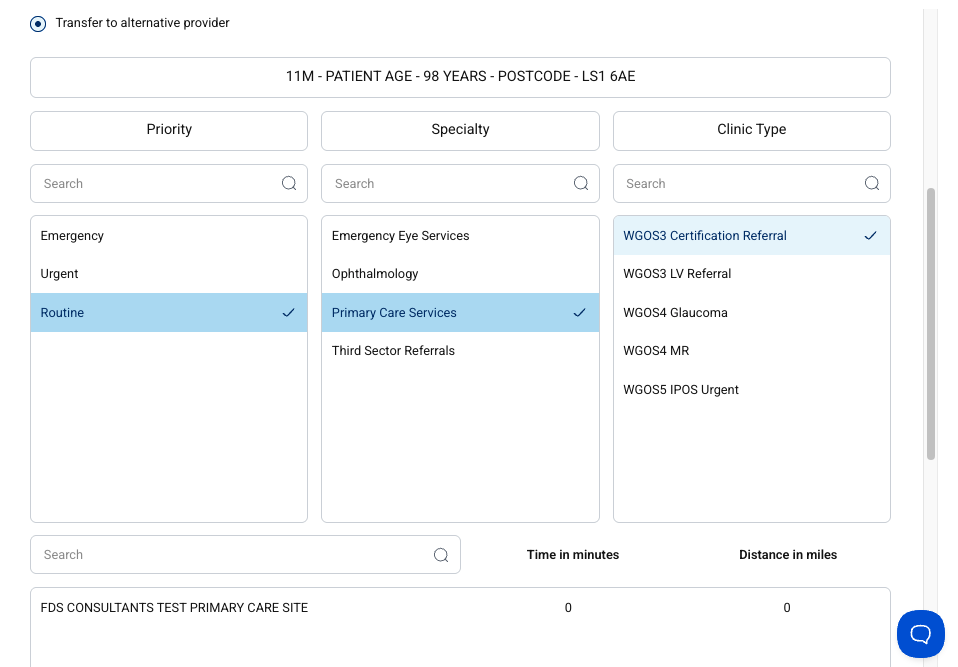
Send to alternative provider
There may be occasions where a referral is rejected or returned to you asking for it to be sent to an alternative provider. The below outline the process in how to action this.
Step 1
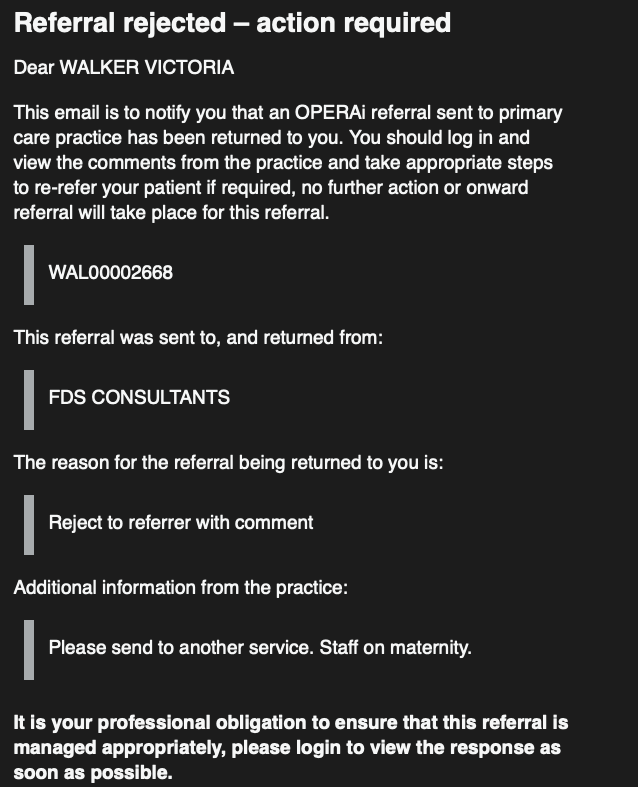
You will receive an email notification, as per below image, that will notify you that a referral has been actioned and the actions that have been taken, in the case below "Reject to referrer with Comment".
Step 2
On your Clinical Dashboard the referral will have landed in the Action Required tab. Select View Episode and then the red Triage Action Required button.


Step 3
This will open the WGOS Referral Management Form. Continue through the form, confirming patient and GP details. On page 3 'Outcome Information' you will be given the following options:
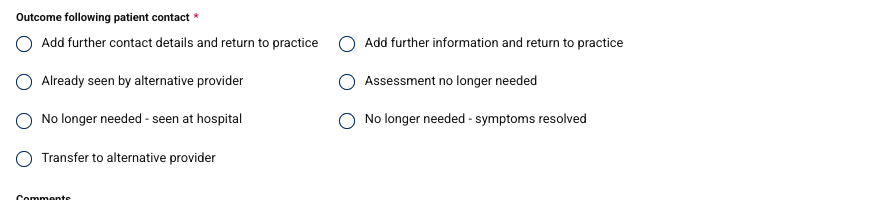
Once you have selected 'Transfer to alternative provider' you will then be shown the following widget which will allow you to select to send the referral to another practice or forward on to Secondary Care, with additional comments box if needed.