
Hospital Dashboard Overview
Hospital Dashboard Overview
1. Introduction
The Hospital Dashboard is the main landing page you will see when you successfully log into the referral management application.
The dashboard provides a central location for viewing and managing referrals received by your hospital or Trust site. It allows authorised hospital users (Secondary Care) to identify referrals awaiting clinical triage, review referrals that have been escalated, and access important information relating to their hospital site.
The dashboard has been designed to provide users with a clear overview of referral activity, helping clinical teams identify referrals requiring attention and navigate efficiently between different clinical specialties.
This guide explains the main sections of the Hospital Dashboard, how to navigate between clinic types, and how to locate and open individual referrals for review.
What Will You Learn?
By the end of this guide, you should be able to:
- Understand the purpose of the Hospital Dashboard.
- Identify the hospital or Trust site you are currently accessing.
- Locate important messages and referral notifications.
- Understand how referrals are organised by clinic type.
- Identify referrals awaiting clinical triage.
- Locate referrals that have been escalated for further review.
- Navigate between different referral lists.
- Open an individual referral to review the information provided.
2. Accessing the Hospital Dashboard
Once you have successfully logged into the application, you will automatically be directed to your Hospital Dashboard.
This is the main page from which you can access referrals associated with the hospital or Trust site you are currently logged into.
The dashboard is divided into several sections, each designed to provide specific information or functionality.
These include:
- Hospital Info: Displays information about the hospital or Trust site you are accessing.
- Messages: Provides notifications and updates relating to referral activity.
- Clinic Types: Displays the clinical specialties and their associated referral volumes.
- Referrals for Triage: Displays referrals awaiting an initial clinical triage decision.
- Escalated Referrals: Displays referrals that have been escalated for further review or action.
Understanding these sections will help you navigate the application and identify the referrals relevant to your role.
Figure 1 – Hospital Dashboard Overview
Figure 1 provides an overview of the Hospital Dashboard as it appears when you first access the application.
Take a moment to familiarise yourself with the layout and the location of the different sections.

Figure 1: Hospital Dashboard showing the main areas available to Secondary Care users.
Before beginning any referral management activities, take a moment to familiarise yourself with the dashboard layout. Understanding where information is displayed will make it easier to locate referrals and navigate between different clinical specialties.
3. Hospital Info
The Hospital Info section displays information relating to the hospital or Trust site you are currently accessing.
This section is particularly important for users who work across multiple hospital sites or who have access to more than one organisation within the application.
The information displayed allows you to confirm that you are working within the correct hospital environment before reviewing or processing referrals.
Why Is This Important?
Referrals are associated with specific receiving organisations and hospital sites. It is therefore important to ensure that you are accessing the correct site before undertaking clinical triage activities.
Checking the Hospital Info section helps reduce the risk of confusion when working across multiple locations.
How to Check Your Hospital Information
- Log into the referral management application.
- Wait for the Hospital Dashboard to load.
- Locate the Hospital Info section.
- Review the hospital or Trust information displayed.
- Confirm that the details correspond to the site you intend to access.
If you regularly work across multiple hospital sites, it is recommended that you complete this check each time you log in.
Figure 2 – Hospital Information
Figure 2 highlights the Hospital Info section of the dashboard.
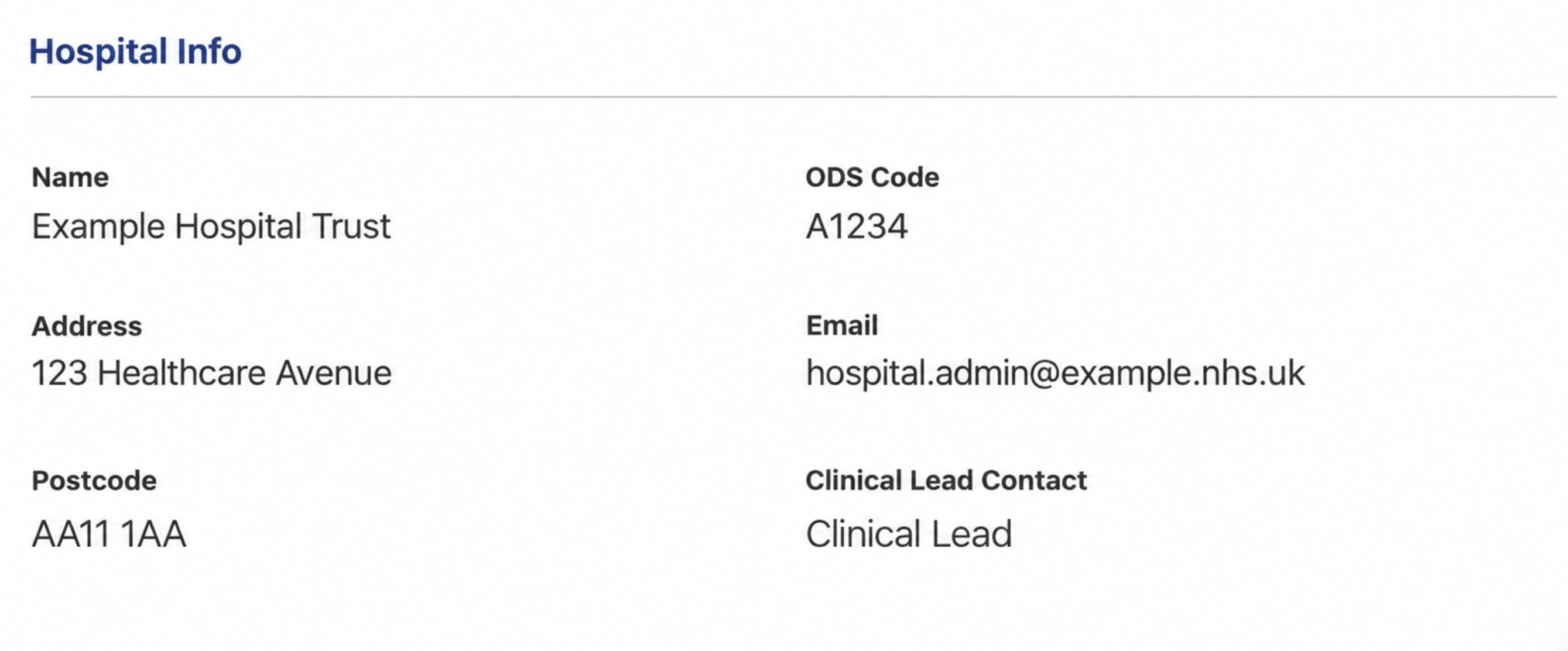
Figure 2: Hospital Info section displaying the details of the currently selected hospital site.
If any of the information displayed within the Hospital Info section is incorrect, please contact operaiwales@referral.solutions before continuing with referral management activities.
4. Messages
The Messages section provides notifications and updates relating to referral activity within the application.
Messages are used to inform users when an action or update has occurred in relation to a referral.
This helps users remain aware of relevant referral activity without needing to manually review every referral within the application.
What Are Messages Used For?
Messages may be generated when a referral progresses through a particular stage of the workflow or when an action has been completed that requires the attention of another user or team.
They provide an additional method of keeping users informed about changes or actions relating to referrals.
How to Review Messages
- Navigate to the Hospital Dashboard.
- Locate the Messages section.
- Review any notifications displayed.
- Identify whether the message relates to a referral requiring your attention.
- Where appropriate, navigate to the relevant referral to review its current status and information.
It is good practice to review your messages regularly, particularly when accessing the application at the beginning of a working session.
Figure 3 – Messages
Figure 3 shows the Messages section of the Hospital Dashboard.

Figure 3: Messages section displaying referral-related notifications.
Messages should be used alongside the referral lists on your dashboard. While messages provide useful notifications, the referral lists allow you to identify the referrals currently awaiting clinical review or action.
5. Clinic Types
The main section of the Hospital Dashboard displays information about referrals awaiting clinical triage.
On the left-hand side of this area, you will find the Clinic Types section.
Clinic Types are used to organise referrals into different clinical specialties or services.
This allows hospital users to focus on referrals associated with the clinical area in which they are working.
Understanding the Clinic Type List
The Clinic Types section displays the available clinical specialties associated with your hospital site.
Alongside each clinic type, the dashboard provides an overview of the number of referrals currently awaiting triage.
These figures include referrals awaiting initial triage and referrals that have been escalated for further review.
This provides a useful indication of the volume of referrals requiring attention within each clinical specialty.
How to Select a Clinic Type
- Navigate to the Hospital Dashboard.
- Locate the Clinic Types list on the left-hand side.
- Review the available clinical specialties.
- Identify the clinic type relevant to your role or the referrals you wish to review.
- Select the appropriate clinic type.
- The main referral section will update to display referrals associated with your selected specialty.
Once a clinic type has been selected, you can review the referrals displayed within the main section of the dashboard.
Figure 4 – Clinic Types
Figure 4 illustrates the Clinic Types section and the referral counts associated with the available specialties.

Figure 4: Clinic Types section showing the clinical specialties and associated referral counts.
Why Are Clinic Types Important?
Organising referrals by clinic type allows different clinical teams to identify the referrals relevant to their specialty.
It also provides greater visibility of the number of referrals awaiting review across the hospital site.
Always ensure that you have selected the correct clinic type before reviewing referrals. The referrals displayed in the main dashboard will correspond to the specialty you have selected.
6. Understanding the Referral Lists
Once you have selected a clinic type, the main section of the dashboard will display the referrals associated with that specialty.
The referral information is organised into two separate tabs:
- Referrals for Triage
- Escalated Referrals
These tabs allow users to distinguish between referrals awaiting an initial clinical triage decision and those requiring further review following escalation.
Figure 5 – Referral List Tabs
Figure 5 shows the referral list area and the available tabs.

Figure 5: Referral list area showing the Referrals for Triage and Escalated Referrals tabs.
7. Referrals for Triage
The Referrals for Triage tab displays referrals that are awaiting clinical triage within the selected clinic type.
These referrals have reached the hospital triage stage and require review by an appropriate authorised clinical user.
The purpose of clinical triage is to assess the information provided within the referral and determine the most appropriate next step for the patient.
What Information Can You Access?
The referral list provides an overview of referrals currently awaiting triage.
From this section, users can identify individual referrals and open them to review the information submitted by the referring organisation.
The information available within an individual referral will depend on the details recorded during the referral process.
How to Locate a Referral Awaiting Triage
- Log into the application and navigate to the Hospital Dashboard.
- Confirm that you are accessing the correct hospital site.
- Select the relevant clinic type from the left-hand menu.
- Locate the Referrals for Triage tab.
- Select the tab to display referrals awaiting clinical triage.
- Review the referral list to identify the referral you wish to assess.
Once you have identified the relevant referral, you can open it to review the clinical information provided.
Figure 6 – Referrals for Triage
Figure 6 shows the Referrals for Triage section of the dashboard.

Figure 6: Referrals for Triage tab displaying referrals awaiting clinical review.
When reviewing referrals awaiting triage, ensure you are working within the correct clinical specialty. This helps you identify the appropriate referral list and avoid confusion between different clinical services.
8. Escalated Referrals
The Escalated Referrals tab displays referrals that have been escalated for further review or action.
An escalated referral is one that requires additional consideration within the clinical triage process.
This may occur when a referral requires further clinical input or review before an appropriate outcome can be determined.
Separating escalated referrals from the initial triage list allows users to identify referrals that are progressing through an additional review stage.
How to View Escalated Referrals
- Navigate to the Hospital Dashboard.
- Select the relevant clinic type.
- Locate the Escalated Referrals tab.
- Select the tab to display escalated referrals for that specialty.
- Review the referrals listed.
- Identify the referral requiring further assessment.
- Open the referral to review the information available.
Figure 7 – Escalated Referrals
Figure 7 shows the Escalated Referrals section of the Hospital Dashboard.

Figure 7: Escalated Referrals tab displaying referrals requiring further review.
Why Is the Escalated Referral List Important?
The Escalated Referrals tab provides a dedicated area for identifying referrals that require further clinical consideration.
This helps distinguish between referrals awaiting their initial triage assessment and those that have already progressed to an additional review stage.
Escalated referrals may require additional clinical input. Always follow your organisation's established clinical procedures and escalation arrangements when reviewing these referrals.
9. How to View an Individual Referral
Both the Referrals for Triage and Escalated Referrals tabs allow users to access individual referrals.
Opening a referral allows you to review the information provided by the referring organisation and understand the reason for referral.
This is an important part of the clinical triage process, as the information contained within the referral supports the clinician in determining the appropriate next steps.
Step-by-Step: Opening a Referral
Step 1 – Access the Hospital Dashboard
Log into the application and navigate to the Hospital Dashboard.
Confirm that the correct hospital or Trust site is displayed within the Hospital Info section.
Step 2 – Select the Appropriate Clinic Type
Using the Clinic Types list on the left-hand side, select the clinical specialty associated with the referral you wish to review.
The main dashboard will update to display referrals for that clinic type.
Step 3 – Select the Relevant Referral Tab
Choose the appropriate tab depending on the stage of the referral.
- Referrals for Triage: Select this tab if the referral is awaiting an initial clinical triage assessment.
- Escalated Referrals: Select this tab if the referral has been escalated for further clinical review.
Step 4 – Identify the Referral
Review the list of referrals displayed within the selected tab.
Locate the referral you wish to review using the information available within the referral list.
Step 5 – Select View
Once you have identified the appropriate referral, select the View option associated with that referral.
This will open the individual referral and allow you to review the information provided.
Step 6 – Review the Referral Information
Once the referral has been opened, review the information available to understand the reason for referral and the patient's clinical requirements.
Depending on the information submitted, this may include patient details, clinical information, the reason for referral, and supporting information provided by the referring organisation.
Ensure that you have reviewed the relevant information before proceeding with any clinical triage activity.
Step 7 – Continue with the Appropriate Triage Process
Once you have reviewed the referral, follow the appropriate clinical triage process in accordance with your organisation's clinical procedures.
For further information about completing the triage assessment, refer to the relevant clinical triage training guide.
The Hospital Dashboard is used to locate and access referrals. Once a referral has been opened, the detailed clinical triage process is undertaken within the relevant referral screens.
10. Practical Training Scenarios
The following scenarios demonstrate how the Hospital Dashboard can be used during day-to-day referral management activities.
Scenario 1 – Reviewing New Referrals
You are a hospital clinician responsible for reviewing referrals within a particular specialty.
What should you do?
- Log into the application.
- Confirm that you are accessing the correct hospital site.
- Select your clinical specialty from the Clinic Types list.
- Open the Referrals for Triage tab.
- Review the referrals awaiting assessment.
- Select View against the referral you wish to assess.
- Review the clinical information and proceed with the appropriate triage process.
Scenario 2 – Reviewing an Escalated Referral
You have been asked to review a referral that has been escalated for further clinical consideration.
What should you do?
- Access the Hospital Dashboard.
- Select the relevant clinic type.
- Open the Escalated Referrals tab.
- Locate the referral requiring further review.
- Select View to open the referral.
- Review the available clinical information.
- Follow the appropriate clinical escalation and review procedures.
Scenario 3 – Working Across Multiple Hospital Sites
You work across more than one hospital location and need to review referrals at a particular site.
What should you do?
- Log into the application.
- Locate the Hospital Info section.
- Check the hospital or Trust details displayed.
- Confirm that you are accessing the correct site.
- Once confirmed, select the relevant clinic type.
- Proceed to the appropriate referral list.
If the hospital information is incorrect, contact the application support team before continuing.
11. Good Practice When Using the Hospital Dashboard
To support effective referral management, users should follow a number of good practice principles.
- Check your hospital site: Always confirm that you are working within the correct hospital or Trust environment.
- Review messages: Check the Messages section regularly for notifications relating to referral activity.
- Select the correct clinic type: Ensure you are reviewing referrals associated with the appropriate clinical specialty.
- Check both referral tabs: Be aware that referrals awaiting initial triage and escalated referrals are displayed separately.
- Review referral information carefully: Ensure the relevant clinical information has been reviewed before making any triage decisions.
- Follow local clinical procedures: The application supports referral management, but clinical decisions must follow established organisational guidance.
- Use the training guides: Refer to the relevant help articles whenever you require additional guidance on a specific process.
12. Key Points to Remember
- The Hospital Dashboard is the main landing page following a successful login.
- The Hospital Info section identifies the hospital or Trust site you are accessing.
- The Messages section provides notifications relating to referral activity.
- Clinic Types organise referrals into different clinical specialties.
- The referral counts provide an overview of referrals awaiting triage, including escalated referrals.
- The Referrals for Triage tab displays referrals awaiting initial clinical assessment.
- The Escalated Referrals tab displays referrals requiring further clinical review.
- Selecting View against a referral allows you to open and review its information.
- The dashboard is used to locate and access referrals before undertaking the appropriate clinical triage process.
13. Further Support
If you experience difficulties accessing the Hospital Dashboard, identifying referrals, or navigating between clinical specialties, please refer to the relevant support documentation.
For application-related queries or to report incorrect hospital information, please contact:
operaiwales@referral.solutions
For detailed instructions on reviewing and completing clinical triage assessments, please refer to the relevant Secondary Care training articles.